PDF to Images in Python

Overview

안녕하세요. 오늘은 PDF파일의 페이지들을 이미지로 변환하는 파이썬 스크립트를 만들어 보도록하겠습니다.

Install Package

우선 필요한 파이썬 패키지를 설치하도록 하겠습니다. 여기서 필요한 패키지는 pdf2image라는 패키지에요.

pip install pdf2image

그런데 pdf2image패키지는 poppler라는 라이브러리를 이용해서 돌아가는 패키지거든요. 운영체제에 poppler를 설치하셔야 pdf2image를 사용하실 수 있습니다. 저는 맥을 쓰고 있어서 brew를 통해서 설치합니다. 설치시간이 많이 걸리니까 한참 기다리셔야해요.

brew install poppler

참고로, poppler는 gcc라이브러리를 참조하므로 혹시 맥에 gcc가 이미 설치되어 있지 않다면 gcc를 먼저 설치하신 후에 poppler를 설치해주시기 바랍니다. 맥북에 XCode가 없으면 gcc설치가 안되니까 XCode를 우선적으로 설치하셔야합니다. XCode는 LaunchPad의 Apps에서 설치하실 수 있습니다.

brew install gcc

Windows운영체제를 사용하시는 분들은 최신 Poppler 패키지를 다운로드하고 bin\ 디렉토리를 PATH 환경 변수에 추가합니다.

Linux운영체제를 사용하시는 분들은 아래와 같이 apt-get라이브러리 매니저를 사용하여 라이브러리를 설치합니다.

sudo apt-get update
sudo apt-get install -y poppler-utils

하지만 최신버젼의 MacOS를 설치한 분들은 이런 잡다한 문제가 일어나지는 않을거에요.

poppler가 성공적으로 설치가 되었으면 pdf_to_images.py라는 이름으로 파일을 하나 만들어 주세요.

from pdf2image import convert_from_path

pdf_path = 'input.pdf'
output_folder = 'output'
images = convert_from_path(pdf_path)

for i, image in enumerate(images):
    image.save(f'{output_folder}/page_{i+1}.png', 'PNG')

그리고 이미지를 추출할 PDF파일을 만들어 input.pdf로 저장합니다. 그리고 output이라는 폴더를 만들어주세요. 그 뒤에 아래와 같이 스크립트를 실행합니다.

python pdf_to_images.py

실행이 완료되면 PDF파일 안의 모든 페이지들이 이미지로 변환되어 output폴더에 저장이됩니다.

Initializing MacBook Pro

Install Basic Apps

가장 먼저 필수앱들을 설치해줍니다. iMovie는 유투브 편집용으로 쓰고 있기 때문에 저는 필요한데 필요없으신 분들은 설치하지 않으셔도 됩니다.

  • Google Chrome
  • Sublime Text
  • iTerm2
  • Visual Studio Code
  • iMovie

subl

홈에 bin폴더 만들어서 subl의 심볼릭링크를 저장해줍니다.

cd ~
mkdir bin
cd bin
ln -s /Applications/Sublime\ Text.app/Contents/SharedSupport/bin/subl

그리고 .bash_profile을 생성해서 해당 경로를 인식할 수 있게 해주세요

export PATH=$PATH:~/bin

그러면 앞으로 subl라는 명령어로 Sublime Text를 열수 있습니다.

iTerm2

Settings > Appearance > General에 들어가서 Theme을 Dark으로 변경합니다.

그리고 옆에 Profiles > Colors탭을 열어서 배경색, 글자색등을 바꿔줍니다.

그리고 .bash_profile에서 프롬프트도 예쁘게 바꿔줍니다.

DEFAULT='\033[0m'
BLACK='\033[0;30m'
DARKGRAY='\033[1;30m'
RED='\033[0;31m'
LIGHTRED='\033[1;31m'
GREEN='\033[0;32m'
LIGHTGREEN='\033[1;32m'
BROWNORANGE='\033[0;33m'
YELLOW='\033[1;33m'
BLUE='\033[0;34m'
LIGHTBLUE='\033[1;34m'
PURPLE='\033[0;35m'
LIGHTPURPLE='\033[1;35m'
CYAN='\033[0;36m'
LIGHTCYAN='\033[1;36m'
LIGHTGRAY='\033[0;37m'
WHITE='\033[1;37m'

export PS1="${BLUE}\D{%H:%M} ${GREEN}\w ${DEFAULT}\$ "

Basic Alias

.bash_profile를 열어서 자주 쓰는 명령어를 alias해줍니다.

alias l="ls -al"
alias h="history"
alias vialias="subl ~/.bash_profile"
alias sourcealias="source ~/.bash_profile"

현재 사용하고 있는 MacOS가 15.3.1 (24D70)인데 원래대로라면 .zshrc을 사용하는 것으로 알고 있습니다. 하지만 제가 지금 세팅하고 있는 랩탑은 2019년 생산제품이고 버젼 10.14가 디폴트로 설치되는 Macbook입니다. 파티션의 내용을 지우고 기본으로 제공되는 10버젼을 새로 설치한뒤 파티션 데이타 포멧에 오류가 있어서 바로 15로 업그레이드를 하지 못하고 11로 업그레이드한 후에 15를 설치한 경우라서 아마도 bash을 이용하는 것 같습니다.

References

Running Python Flask on Bluehost WordPress Hosting Service

Overview

안녕하세요. 오늘은 약간 편법적인 방법으로 Python서버를 Bluehost의 WordPress 호스팅플랜으로 한번 돌려보려고 해요. 성공여부는 모르겠지만 일단 한번 도전해볼게요!

Connect SSH

일단 SSH로 서버에 접속합니다. 블루호스트의 웹호스팅으로 SSH서버에 접속하는 방법은 여기에 있습니다.

ssh 아이디@도메인.com -p 2222 -i ~/.ssh/bluehost/id_rsa

Python 3.12.8 (권한없음)

Python 버젼 확인

파이썬 버젼을 확인해볼까요? 버젼이 너무 오래되었네요.

# python --version
Python 2.7.5
# python3 --version
Python 3.6.8

파이썬 3.12.8 설치시도 (C compiler없음)

오늘 날짜(2025년 1월 13일)로 가장 최근 버전의 파이썬은 3.12.8입니다.

mkdir ~/python

cd ~/python

wget http://www.python.org/ftp/python/3.12.8/Python-3.12.8.tgz

tar zxfv Python-3.12.8.tgz

find ~/python -type d | xargs chmod 0755

cd Python-3.12.8

./configure --prefix=$HOME/python

설치를 위한 C컴파일러가 서버에 없네요.

configure: error: in `/home/__HOMEDIR__/python/Python-3.12.8':
configure: error: no acceptable C compiler found in $PATH
See `config.log' for more details

C Compiler 권한요청

에러수정 안내를 보니까 cPanel사용자가 C compiler group에 속해있지 않다네요.

If the configuration error shown above occurs when you attempt to configure Python with ./configure –prefix=$HOME/python, this means that your cPanel user is not added to the C compiler group on the server. Contact our Support at 888-401-4678 to request you be added to the Compiler group.

888-401-4678에 전화를 해보도록 하겠습니다. 고객센타에서 제 cpanel 계정을 C compiler group에 넣어주었고, 파이썬 버젼도 업그레이드 해주었다네요. 확인해보도록하겠습니다. python은 여전히 2.7이고 대신 python3이 3.6이네요.

$ python --version
Python 2.7.5
$ python3 --version
Python 3.6.8

Python 3.12.8 설치 재시도 (권한없음)

파이썬 설치파일을 실행해볼까요?

./configure --prefix=$HOME/python

권한이 없다고 에러가 납니다.

Python 3.6.8로 서비스 되는지 (되긴 됨)

Run Hello World with Python 3.6.8

일단 버젼 업그레이드는 나중에 하고 2.7은 너무 out dated니까 3.6버젼으로 시도를 계속 해보도록 하겠습니다.

hello_world.py 파이썬 파일을 하나 만들게요.

print("Hello, World!")

파일이 실행은 됩니다.

# python3 hello_world.py
Hello, World!

Run Server with Python 3.6

서버가 띄워지는지 한번 볼까요? Python2는 안되네요.

# python -m http.server
/usr/bin/python: No module named http

Python3로 시도해볼게요.

# python3 -m http.server
Serving HTTP on 0.0.0.0 port 8000 (http://0.0.0.0:8000/) ...

8000포트로 서버가 떴어요.

Run Flask with Python 3.6

이번에는 Falsk프레임웤으로 서버가 실행이 되는지 해볼게요

app.py라는 이름으로 파일을 하나 생성하세요.

from flask import Flask

app = Flask(__name__)

@app.route('/')
def home():
    return '<h1>Flask REST API</h1>'

if __name__=="__main__":
    app.run(debug=True)

해당 앱을 실행해 볼까요? Flask가 없다네요

$ flask --app app
-jailshell: flask: command not found

PIP Install Flask 2.0.3 (Pip install 권한 있음)

pip설치 권한이 있는지 모르겠는데 한번 시도해볼게요. 놀랍게도 설치가 잘되네요. 참고로 제 cpanel 계정을 C compiler group에 추가해주기 전에는 pip install 권한이 없었습니다. 일찌감치 권한요청을 하길 잘한거 같아요.

# pip3 install Flask
Successfully installed Flask-2.0.3 Jinja2-3.0.3 MarkupSafe-2.0.1 Werkzeug-2.0.3 click-8.0.4 dataclasses-0.8 itsdangerous-2.0.1

Encoding문제 해결

그러면 다시 Flask 서버를 실행해볼게요. 에러가 나네요. 파이썬이 ASCII엔코딩을 사용하도록 설정이 되어 있대요.

# flask --app app
RuntimeError: Click will abort further execution because Python was configured to use ASCII as encoding for the environment. Consult https://click.palletsprojects.com/unicode-support/ for mitigation steps.

해당 설정을 바꿔볼게요.

# export PYTHONIOENCODING=utf-8
# echo $PYTHONIOENCODING
utf-8

Consult해준대로 Locale과 언어도 바꿔볼까요?

# locale charmap
ANSI_X3.4-1968
# export LC_ALL=en_US.UTF-8
# echo $LC_ALL
en_US.UTF-8
# export LANG=en_US.UTF-8
# echo $LANG
en_US.UTF-8
# locale charmap
UTF-8

그리고 파이썬 파일의 캐릭터셋도 바꿀게요. 일단 현재 파일을 캐릭터셋을 확인합니다.

# file -i app.py
app.py: text/x-python; charset=us-ascii

ASCII를 UTF-8로 바꿔볼게요. 그런데 바로는 안바뀌네요.

# iconv -f us-ascii -t utf-8 app.py > app-utf8.py
# file -i app-utf8.py
text/x-python; charset=us-ascii

그러면 UTF-16으로 변환을 했다가 다시 UTF-8로 변환을 시도해보도록 하겠습니다.

# iconv -f us-ascii -t utf-16 app.py > app-utf16.py
# file -i app16.py
app16.py: text/x-python; charset=utf-16le
# iconv -f utf-16le -t utf-8 app-utf16.py > app-utf8.py
# file -i app8.py
app8.py: text/x-python; charset=utf-8

Run Flask 2.0.3 Server

이제 Flask서버를 다시 실행해보겠습니다. --app옵션이 없다고 나오네요.

# flask --app app-utf8.py
Usage: flask [OPTIONS] COMMAND [ARGS]...
Try 'flask --help' for help.

Error: No such option: --app

파이썬 3.6버젼에서 설치할 수 있는 Flask버젼은 2.0.3이 최선이었나봅니다.

# flask --version
Python 3.6.8
Flask 2.0.3
Werkzeug 2.0.3

그러면 2.0.3버젼에서 실행하던 명령으로 실행해야겠네요

# flask run
 * Environment: production
   WARNING: This is a development server. Do not use it in a production deployment.
   Use a production WSGI server instead.
 * Debug mode: off
 * Running on http://127.0.0.1:5000/ (Press CTRL+C to quit)

일단 로컬에서는 실행이 잘되었습니다

# curl http://127.0.0.1:5000/
<h1>Flask REST API</h1>

Make PHP Wrapping Service

Define Flask Routes

PHP Wrapping Service를 만들기 전에 충분한 테스트를 위하여 Flask에 Route을 몇개 더 만들어 볼게요.

from flask import Flask

app = Flask(__name__)

@app.route('/')
def home():
    return '<h1>Flask REST API</h1>'

@app.route('/profile')
def profile():
    return '<h1>Profile</h1>'

@app.route('/business')
def business():
    return '<h1>Business</h1>'

if __name__=="__main__":
    app.run(debug=True)

혹시 SSH를 나갔다 다시 들어왔다면 UTF-8로 설정한 값들이 없어져 있을거에요. 앱을 실행하기 전에 다시 설정해주셔야합니다. 매번 이렇게 해줄수는 없으니 권한 문제가 해결되면 Python과 Flask버젼을 업그레이드 하도록 하겠습니다.

# export PYTHONIOENCODING=utf-8
# export LC_ALL=en_US.UTF-8
# export LANG=en_US.UTF-8
# locale charmap
UTF-8
# file -i app.py
app.py: text/x-python; charset=utf-8

Flask를 실행하고 각 Route를 테스트합니다.

# flask run
 * Environment: production
   WARNING: This is a development server. Do not use it in a production deployment.
   Use a production WSGI server instead.
 * Debug mode: off
 * Running on http://127.0.0.1:5000/ (Press CTRL+C to quit)
127.0.0.1 - - [24/Jan/2025 13:58:26] "GET / HTTP/1.1" 200 -
127.0.0.1 - - [24/Jan/2025 13:58:31] "GET /profile HTTP/1.1" 200 -
127.0.0.1 - - [24/Jan/2025 13:58:35] "GET /business HTTP/1.1" 200 -

# curl http://127.0.0.1:5000/
<h1>Flask REST API</h1>
# curl http://127.0.0.1:5000/profile
<h1>Profile</h1>
# curl http://127.0.0.1:5000/business
<h1>Business</h1>

.htaccess

PHP코드를 하기전에 .htaccess에 Route을 설정할게요.

RewriteEngine On
RewriteRule ^profile index.php?c=profile [L,QSA]
RewriteRule ^business index.php?c=business [L,QSA]

PHP Wrapper App

그러면 이제 PHP로 Corresponding URL을 호출하는 앱을 만들어 볼게요. index.php를 생성합니다.

<?php
$path = $_GET['c'];
$url = "http://127.0.0.1:5000/".$path;
echo file_get_contents($url);
?>

자 이제 최종테스트를 해볼까요? 로컬 터미널에서 해당 서비스를 호출합니다.

$ curl https://__YOUR_DOMAIN__/profile
<h1>Profile</h1>
$ curl https://__YOUR_DOMAIN__/business
<h1>Business</h1>

오래된 버젼으로 어찌어찌 서비스가 되기는 합니다만 이렇게 서비스를 하는 것은 추천드리는 바는 아닙니다. 부득이한 경우에 사용할 수는 있지만 안정적으로 사용할 수는 없을 것 같습니다. 특히 문제가 되는것은 Python버젼이 너무 낮아서 Flask를 최신 버젼으로 설치하지 못하는 것인데 그렇게 되면 OEM등의 기능을 전혀 사용하지 못하게 되어 코드가 너무 낡아져 버립니다. 그래도 이게 되는지 확인하고 싶었고, 불편한 수준에 그쳤지만 어쨌든 Rough하게 가능하다는 거는 확인했으니까 이제 버젼 업그레이드 하는 문제만 해결하면 되겠네요.

Python 3.12.8 재시도 (성공)

Python 3.12.8 재설치 (권한받음)

Bluehost에 연락해서 파이썬 버젼을 업그레이드해달라고 부탁했습니다. 제가 권한이 없어서 직접 설치를 하지 못한다고 했더니 권한을 부여해주더라구요. 대신 서버에 있는 버젼은 업그레이드 할수 없고, 제 Home디렉토리에 설치해서 Alias로 우회하는 방법을 사용해야합니다. 오히려 그게 그들에게도 저에게도 안전한것 같아요. 서버의 파이썬 버젼이 바뀌어도 제 폴더의 파이썬 버젼은 제가 업그레이드할때까지 그대로 일테니까요. 너무 잘된것 같습니다.

그럼 다시 일전에 받아두었던 최신버젼을 설치해보도록하겠습니다. 고객센터에서 참고하라고 보내준 링크입니다. 지난번에 Python-3.12.8를 다운받아서 압축을 해제하는 것 까지는 했으니까 오늘은 configure부터 실행하도록 하겠습니다.

mkdir ~/python

cd ~/python

wget http://www.python.org/ftp/python/3.12.8/Python-3.12.8.tgz

tar zxfv Python-3.12.8.tgz

find ~/python -type d | xargs chmod 0755

cd Python-3.12.8

./configure --prefix=$HOME/python

make

make install

위의 configure명령를 실행하겠습니다.

# ./configure --prefix=$HOME/python
checking build system type... x86_64-pc-linux-gnu
checking host system type... x86_64-pc-linux-gnu
checking for Python interpreter freezing... ./_bootstrap_python
checking for python3.12... no
...
Checked 111 modules (31 built-in, 71 shared, 1 n/a on linux-x86_64, 1 disabled, 7 missing, 0 failed on import)

그럭저럭 잘 실행이 되네요. 그러면 이번에는 make을 실행하도록 하겠습니다.

# make
gcc -std=gnu11 -pthread -c -fno-strict-overflow -Wsign-compare -DNDEBUG -g -O3 -Wall    -std=c11 -Wextra -Wno-unused-parameter -Wno-missing-field-initializers -Wstrict-prototypes -Werror=implicit-function-declaration -fvisibility=hidden  -I./Include/internal  -I. -I./Include    -DPy_BUILD_CORE -o Programs/python.o ./Programs/python.c
...
Checked 111 modules (31 built-in, 71 shared, 1 n/a on linux-x86_64, 1 disabled, 7 missing, 0 failed on import)

일단 에러는 안났으니까. 그러면 이번엔 진짜 설치를 하도록하겠습니다.

# make install
Creating directory /home/__HOMEDIR__/local/python/bin
Creating directory /home/__HOMEDIR__/local/python/lib
...
WARNING: The scripts pip3 and pip3.12 are installed in '/home/__HOMEDIR__/local/python/bin' which is not on PATH.
Consider adding this directory to PATH or, if you prefer to suppress this warning, use --no-warn-script-location.
Successfully installed pip-24.3.1

성공적으로 Python 3.12.8을 설치했습니다.

Make venv with Python 3.12.8

개발에 앞서 해당 프로젝트 폴더에 들어가서 가상환경을 만듭니다. 그래야 다른 프로젝트랑 패키지버젼이 conflic되지 않을테니까요.

# cd ~/www/__PROJECT_DIR__
# ~/python/bin/python3 -m venv .venv
# source ~/www/__PROJECT_DIR__/.venv/bin/activate
(.venv)#

나중에 편리하게 사용하기 위해서 alias를 만들겠습니다.

alias workon="source ~/www/__PROJECT_DIR__/.venv/bin/activate"
alias workoff="deactivate"

PIP Install Flask (SSL기능 안됨)

이제 Flask를 최신버젼으로 설치해볼까요?

(.venv)# pip install Flask
WARNING: Disabling truststore since ssl support is missing
WARNING: pip is configured with locations that require TLS/SSL, however the ssl module in Python is not available.
...
ERROR: No matching distribution found for Flask

SSL이 왜 안되는지 좀 찾아봐야겠어요.

Install OpenSSL 3.4.0

찾아보니까 새로 설치한 최신버젼의 파이썬이 OpenSSl 1.0.2가 너무 오래되서 더이상 지원하지 않는다고 하네요.

# openssl version
OpenSSL 1.0.2k-fips  26 Jan 2017

현재 서버에 설치되어 있는 OpenSSL 버젼은 1.0.2인데 Python 3.12.8을 사용하려면 최소한 OpenSSL 1.1.1이 설치되어있어야합니다. 일단 제가 이 서버에 루트권한이 없으니까 새로운 버젼의 OpenSSL을 홈디렉토리에 설치하고 해당 OpenSSL을 이용해서 Python을 재설치하면 해결이 될것같아요. 현재시점 OpenSSL의 최신버젼은 3.4.0입니다. OpenSSL 3.4.0을 다운받을게요.

wget https://github.com/openssl/openssl/releases/download/openssl-3.4.0/openssl-3.4.0.tar.gz

다운받은 압축파일을 해제합니다.

tar zxfv openssl-3.4.0.tar.gz

압축이 풀린 폴더를 실행가능하게 권한을 변경할게요

find ~/python -type d | xargs chmod 0755

해당 폴더에 들어가세요

cd openssl-3.4.0

그리고 실행전 필요한 설정을 합니다. 여기서 설정할 것은 prefix라고 최종적으로 설치를 할 폴더를 명시합니다. 그리고 openssldir도 같은 폴더위치를 값으로 할당합니다. prefix와 openssldir은 절대경로로 적어주셔야 설치파일이 실행 됩니다. 공용라이브러리를 사용하지 않을거니까 config할때 shared zlib는 명시하지 않습니다.

./config --prefix=$HOME/local/ssl --openssldir=$HOME/local/ssl

위에서 설정한 대로 설치파일을 컴파일하도록 하겠습니다.

make

컴파일이 완료되면 설치를 진행하기 전에 에러가 없는지 점검을 해본 뒤에 진행할게요

make test

문제가 없으면 실제 설치를 진행합니다.

make install

설치가 완료되면 이제 HOME디렉토리에 설치한 OpenSSL를 실행할건데 이때 OpenSSL을 실행하면 libssl.so.3 모듈을 공용폴더에서 찾으려고 할거에요. 이게 HOME디렉토리에 있다고 미리 알려줘야 OpenSSL이 libssl.so.3를 찾아서 실행할 수가 있어요. 아래와 같이 LD_LIBRARY_PATH경로에 새로 설치한 OpenSSL 라이브러리를 추가합니다.

export LD_LIBRARY_PATH=$LD_LIBRARY_PATH:$HOME/local/ssl/lib64

방금 설치한 OpenSSL의 버젼을 확인해볼까요

# $HOME/local/ssl/bin/openssl version -a
OpenSSL 3.4.0 22 Oct 2024 (Library: OpenSSL 3.4.0 22 Oct 2024)
built on: Mon Jan 27 21:52:41 2025 UTC
platform: linux-x86_64
options:  bn(64,64)
compiler: gcc -fPIC -pthread -m64 -Wa,--noexecstack -Wall -O3 -DOPENSSL_USE_NODELETE -DL_ENDIAN -DOPENSSL_PIC -DOPENSSL_BUILDING_OPENSSL -DZLIB -DNDEBUG
OPENSSLDIR: "$HOME/local/ssl"
ENGINESDIR: "$HOME/local/ssl/lib64/engines-3"
MODULESDIR: "$HOME/local/ssl/lib64/ossl-modules"
Seeding source: os-specific
CPUINFO: OPENSSL_ia32cap=0xfffa32034f8bffff:0x818d19e4fbb

    Python 3.12.8 재설치 with OpenSSL 3.4.0

    OpenSSL경로가 바뀌었기때문에 파이썬을 재설치해야합니다. 아까 다운받아서 풀어놓은 Python-3.12.8폴더에 들어가서 configure를 하는데 이번엔 뒤에 with-openssl플래그를 주어서 새로 설치되는 파이썬이 우리가 방금 홈에 설치한 OpenSSL을 사용하도록 합니다.

    설치폴더에 들어가세요

    cd Python-3.12.8

    설치를 진행하기 전에 OpenSSL의 변경된 경로를 LDFLAGS와 CPPFLAGS를 설정함으로써 파이썬에 전달할거에요.

    export LDFLAGS="-L$HOME/local/ssl/lib64"
    export CPPFLAGS="-I$HOME/local/ssl/include"

    configure를 할때 –with-openssl와 -with-openssl-rpath에 OpenSSL경로를 명시합니다.

    ./configure --prefix=$HOME/local/python --with-openssl=$HOME/local/ssl --with-openssl-rpath=$HOME/local/ssl/lib64

    그리고 make, make install을 실행하여 파이썬을 설치합니다.

    # make
    ...
    # make install
    ...
    Successfully installed pip-24.3.1

    Make new venv with new Python location

    제가 OpenSSL지원하는 버젼을 ~/local에 새롭게 설치했기 때문에 기존에 ~/python에서 Python을 갖다 쓰던 virtual env는 SSL을 사용할 수가 없습니다. venv을 새로 설치한 Python을 가지고 다시 만들어야합니다. 헷갈리니까 ~/python에 있는 파일들은 전부 삭제하도록 하겠습니다.

    일단 workoff를 실행해서 venv에서 나옵니다.

    # workoff

    그리고 프로젝트 폴더에 들어가서 venv폴더를 삭제합니다.

    # cd ~/www/__PROJECT_DIR__
    # rm -rf .venv

    그리고 새로 설치한 SSL이 지원되는 파이썬을 가지고 다시 venv를 만들어 줍니다.

    # ~/local/python/bin/python3 -m venv .venv

    기존에 정의한 alias는 그대로 사용할 수 있습니다.

    # workon
    (.venv) #

    이제 파이썬이 ssl모듈을 지원하는지 확인해 볼게요

    python -m ssl

    PIP install Flask

    드디어 원점으로 돌아온 느낌입니다. Flask패키지를 설치해볼게요.

    # pip install Flask
    ...
    Successfully installed Flask-3.1.0 Jinja2-3.1.5 MarkupSafe-3.0.2 Werkzeug-3.1.3 blinker-1.9.0 click-8.1.8 itsdangerous-2.2.0
    # pip list
    Package      Version
    ------------ -------
    blinker      1.9.0
    click        8.1.8
    Flask        3.1.0
    itsdangerous 2.2.0
    Jinja2       3.1.5
    MarkupSafe   3.0.2
    pip          24.3.1
    Werkzeug     3.1.3

    너무 잘 되네요. 우여곡절끝에 해낸것 같습니다 ㅎㅎ 코딩하면서 또 문제가 생기겠지만 그때마다 하나씩 풀어나가면 해결이 되겠지요. 오늘은 여기까지 하겠습니다. 수고하셨습니다.

    References

    How to Access SSH in Bluehost Web Hosting

    안녕하세요. 오늘은 Bluehost로 웹호스팅을 받고 있는 상태에서 SSH로 서버에 접속하는 방법에 대해서 알려드리도록 하겠습니다.

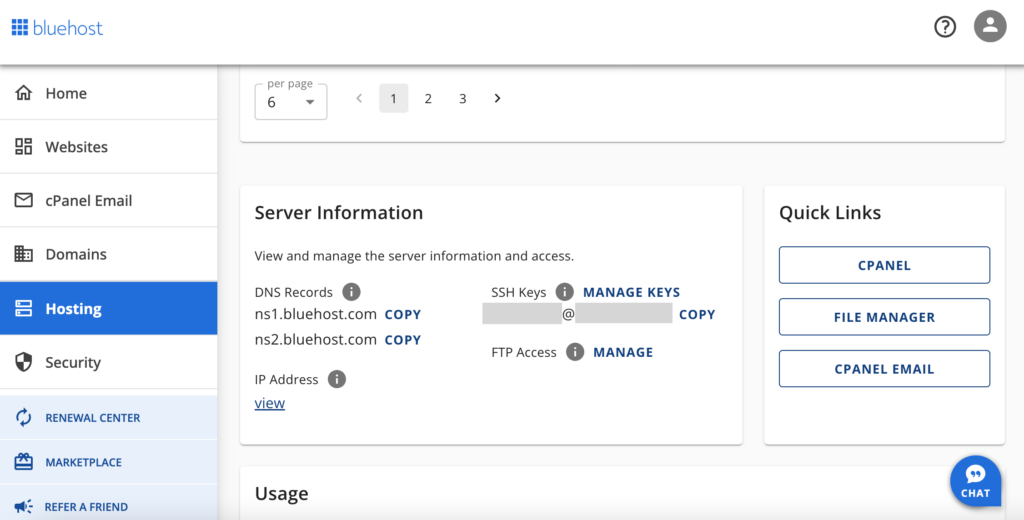
    일단 블루호스트에 로그인을 하시면 제일 먼저 웹호스팅화면을 보여줍니다. 스크롤을 밑으로 쭉 내리시면 Quick Links에 CPANEL이라는 버튼이 보이실거에요. 그걸 클릭하세요.

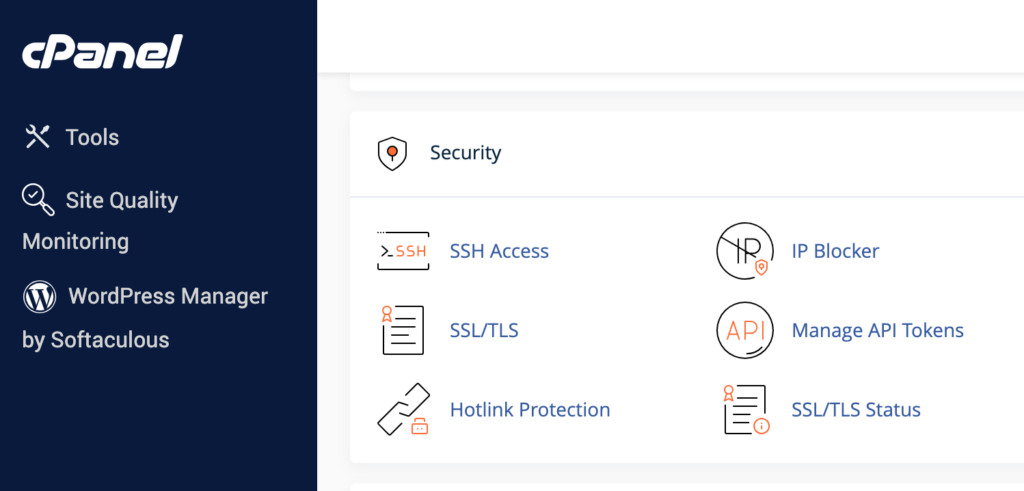
    그러면 cPanel이 뜰거거든요. 스크롤을 쭉 내리면 Security섹션이 나와요. 거기에서 젤 처음 메뉴 SSH Access를 클릭하세요.

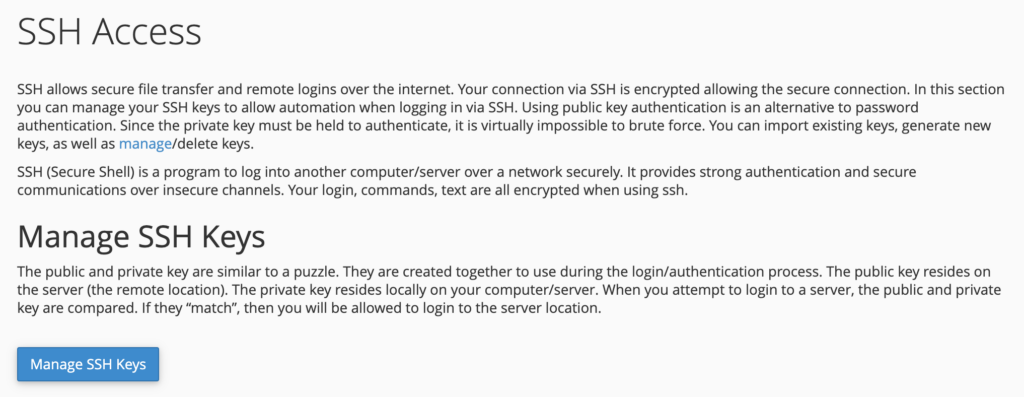
    그러면 SSH Access페이지가 뜨는데요. 거기에서 Manage SSH Keys버튼을 눌러주세요.

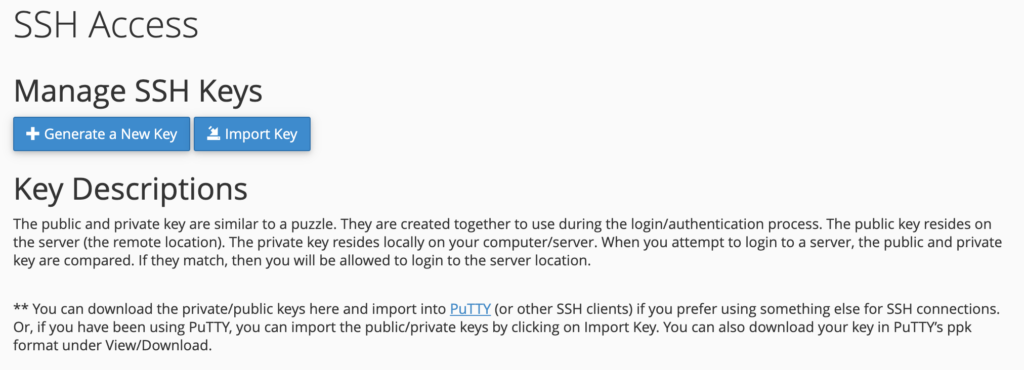
    그러면 다음과같이 설명이 나오는데, + Generate a New Key버튼을 클릭해주세요.

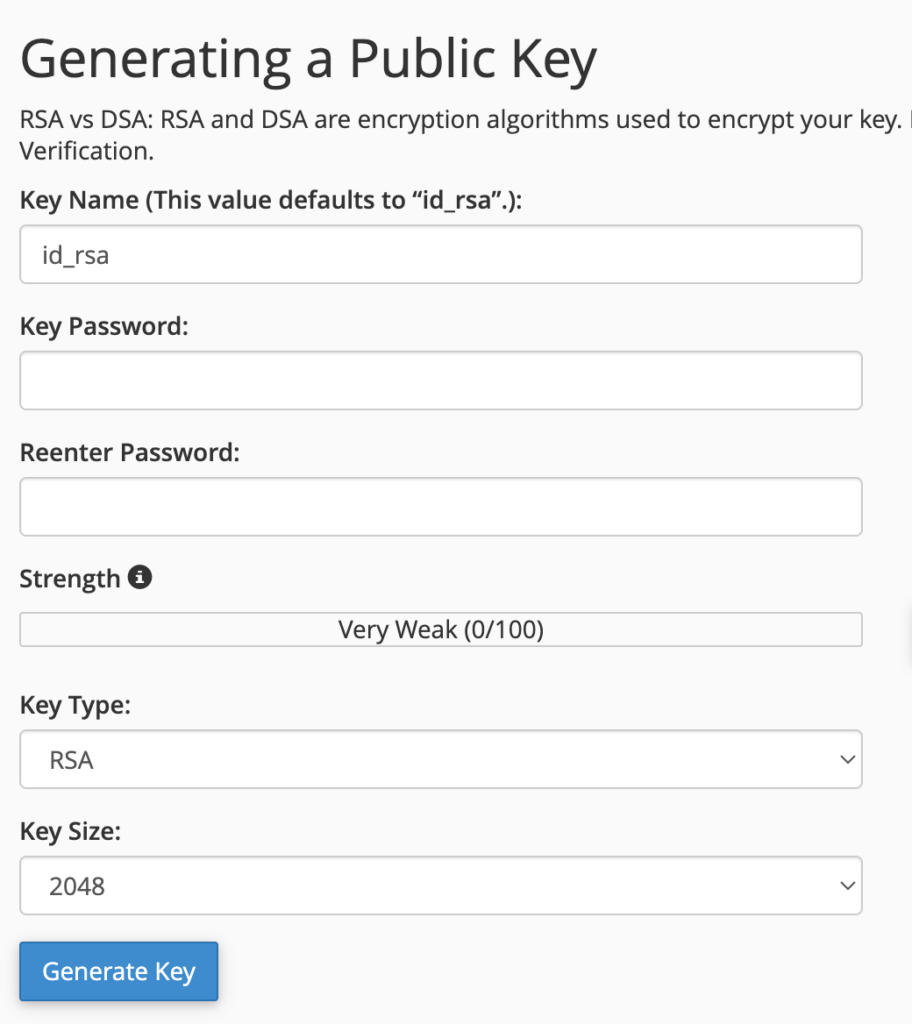
    그러면 다음과 같이 암호키의 이름과 비번등을 넣고 Generate Key를 누르시면 키가 생성됩니다. 여기서 Key Type은 RSA를 선택하세요. RSA는 공개키와 개인키, 이렇게 두개의 키를 생성해서 공개키를 사용해서 암호화를 하고, 나중에 받아서 암호화된 내용을 복호화할때는 개인키를 이용합니다.

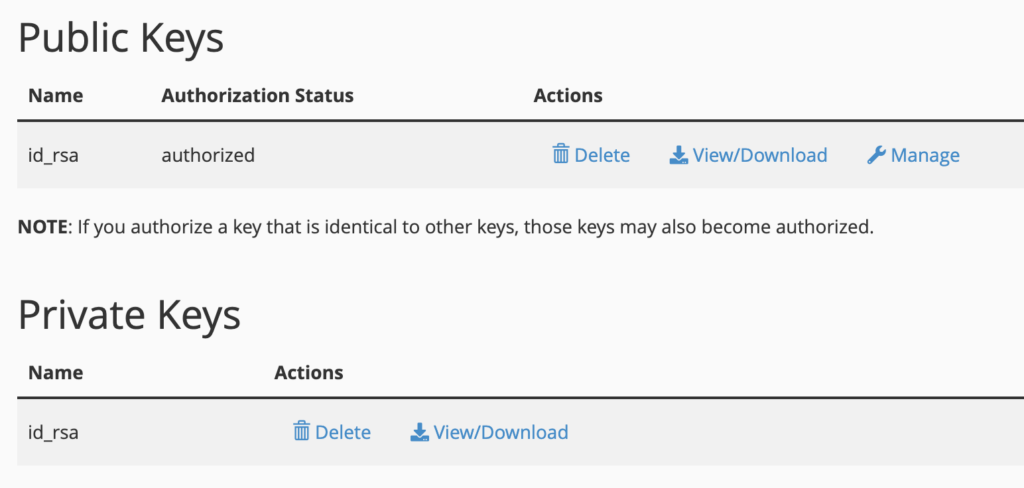
    그러면 다음과 같이 RSA키가 생성됩니다. 보시다시피 Public Keyd와 Private Key가 한쌍이 나란히 생성이 되었어요.

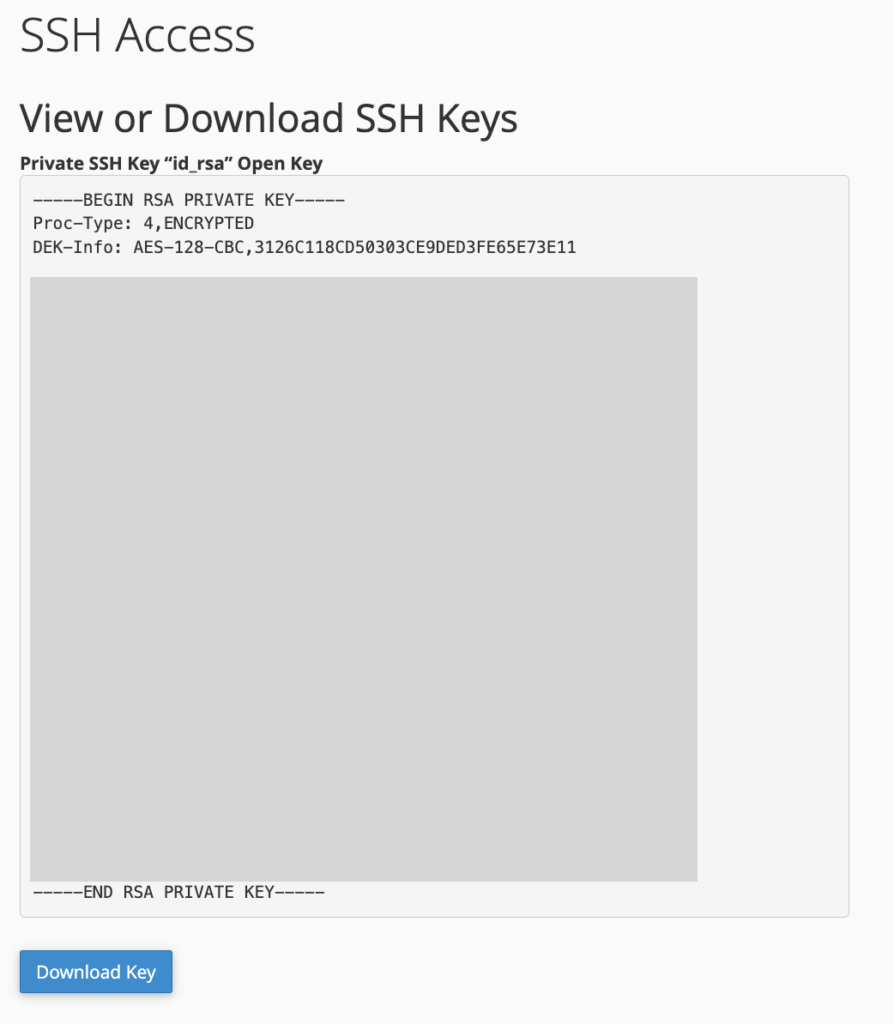
    공개키는 모두에게 공개된 키로 암호화 할때 사용되며, 여기서 중요한건 개인키 Private Key입니다. Private Keys의 id_rsa옆에 있는 View/Download링크를 클릭하세요. 그러면 아래와 같이 개인키를 보여줍니다. 밑에 Download Key버튼을 눌러서 다운 받습니다.

    Downloads폴더에 가시면 id_rsa이라는 파일이 다운 받아져 있을거에요.

    # 일단 본인의 홈디렉토리로 들어가세요
    cd ~
    # 여기에서 .ssh폴더를 생성합니다
    mkdir .ssh
    # 생성한 폴더에 들어갑니다
    cd .ssh
    # 그 안에 bluehost라는 폴더를 만듭니다
    mkdir bluehost
    # 그리고 다운받은 id_rsa파일을 해당 파일로 옮겨줍니다
    mv ~/Downloads/id_rsa ~/.ssh/bluehost/

    이제 SSH에 접속해볼게요. 아래 명령어에서 아이디와 도메인을 본인의 것으로 변경한뒤, 터미널에서 실행해주세요.

    ssh 아이디@도메인 -p 2222 -i ~/.ssh/bluehost/id_rsa

    위의 명령어에서 혹시 아이디를 모르시면 처음에 CPANEL클릭했던 버튼 기억하시죠? 그 옆에 보면 Server Information이 있습니다. 거기에 SSH Keys라고 보이시죠? 그 바로 밑에 아이디@아이피가 있어요. 거기서 아이디를 가져오시면 됩니다. 그리고 도메인은 여러분의 도메인입니다(i.e. 어쩌구.com).

    ssh 접속명령어를 실행하면 아래와 같이 서버에 SSH로 접속이 실행됩니다.

    References

    TTS in Python

    이번시간에는 파이썬으로 텍스트-음성 변환하는 라이브러리들을 살펴보도록하겠습니다. 본강의는 맥북기준으로 진행됩니다.

    pyttsx3

    우선 대표적인 것으로는 pyttsx3가 있는데, 단 버젼은 pyttsx3==2.99로 설치하셔야합니다. 최근버젼에 버그가 있어서 현재시간으로는 아직 개선중인것 같습니다(참고). 2.99버젼은 pip에는 없고 https://test.pypi.org/simple/에서 가져다 설치하셔야해요.

    pip install --no-cache-dir --extra-index-url https://test.pypi.org/simple/ pyttsx3==2.99

    코드는 아래와 같이 사용합니다.

    import pyttsx3
    
    engine = pyttsx3.init()
    text = "Hello, world!"
    engine.save_to_file(text, "output_pyttsx3.mp3")
    engine.runAndWait()

    추가적인 옵션으로는 속도를 변경하려면 rate속성을 바꾸면 됩니다.

    engine.setProperty('rate', 125)

    볼륨을 변경하시려면 volume의 값을 변경하시면 되는데, 0에서 1사이의 값을 넣습니다.

    engine.setProperty('volume',0.9)

    그리고 목소리도 변경할 수가 있는데, voice속성에 변경할 voice ID를 할당하시면 됩니다.

    voices = engine.getProperty('voices')
    engine.setProperty('voice', voices[66].id)

    참고로 pyttsx3에서 지원하는 voice들은 아래와 같습니다(배열방번호, ID, name, 언어, 성별, 나이).

    0,com.apple.speech.synthesis.voice.Agnes,Agnes,en_US,VoiceGenderFemale,35
    1,com.apple.speech.synthesis.voice.Albert,Albert,en_US,VoiceGenderNeuter,30
    2,com.apple.speech.synthesis.voice.Alex,Alex,en_US,VoiceGenderMale,35
    3,com.apple.speech.synthesis.voice.alice,Alice,it_IT,VoiceGenderFemale,35
    4,com.apple.speech.synthesis.voice.allison.premium,Allison,en_US,VoiceGenderFemale,35
    5,com.apple.speech.synthesis.voice.alva,Alva,sv_SE,VoiceGenderFemale,35
    6,com.apple.speech.synthesis.voice.amelie,Amelie,fr_CA,VoiceGenderFemale,35
    7,com.apple.speech.synthesis.voice.anna,Anna,de_DE,VoiceGenderFemale,35
    8,com.apple.speech.synthesis.voice.ava.premium,Ava,en_US,VoiceGenderFemale,35
    9,com.apple.speech.synthesis.voice.BadNews,Bad News,en_US,VoiceGenderNeuter,50
    10,com.apple.speech.synthesis.voice.Bahh,Bahh,en_US,VoiceGenderNeuter,2
    11,com.apple.speech.synthesis.voice.Bells,Bells,en_US,VoiceGenderNeuter,100
    12,com.apple.speech.synthesis.voice.Boing,Boing,en_US,VoiceGenderNeuter,1
    13,com.apple.speech.synthesis.voice.Bruce,Bruce,en_US,VoiceGenderMale,35
    14,com.apple.speech.synthesis.voice.Bubbles,Bubbles,en_US,VoiceGenderNeuter,0
    15,com.apple.speech.synthesis.voice.carmit,Carmit,he_IL,VoiceGenderFemale,35
    16,com.apple.speech.synthesis.voice.Cellos,Cellos,en_US,VoiceGenderNeuter,50
    17,com.apple.speech.synthesis.voice.damayanti,Damayanti,id_ID,VoiceGenderFemale,35
    18,com.apple.speech.synthesis.voice.daniel,Daniel,en_GB,VoiceGenderMale,35
    19,com.apple.speech.synthesis.voice.Deranged,Deranged,en_US,VoiceGenderNeuter,30
    20,com.apple.speech.synthesis.voice.diego,Diego,es_AR,VoiceGenderMale,35
    21,com.apple.speech.synthesis.voice.ellen,Ellen,nl_BE,VoiceGenderFemale,35
    22,com.apple.speech.synthesis.voice.fiona,Fiona,en-scotland,VoiceGenderFemale,35
    23,com.apple.speech.synthesis.voice.Fred,Fred,en_US,VoiceGenderMale,30
    24,com.apple.speech.synthesis.voice.GoodNews,Good News,en_US,VoiceGenderNeuter,8
    25,com.apple.speech.synthesis.voice.Hysterical,Hysterical,en_US,VoiceGenderNeuter,30
    26,com.apple.speech.synthesis.voice.ioana,Ioana,ro_RO,VoiceGenderFemale,35
    27,com.apple.speech.synthesis.voice.joana,Joana,pt_PT,VoiceGenderFemale,35
    28,com.apple.speech.synthesis.voice.jorge,Jorge,es_ES,VoiceGenderMale,35
    29,com.apple.speech.synthesis.voice.juan,Juan,es_MX,VoiceGenderMale,35
    30,com.apple.speech.synthesis.voice.Junior,Junior,en_US,VoiceGenderMale,8
    31,com.apple.speech.synthesis.voice.kanya,Kanya,th_TH,VoiceGenderFemale,35
    32,com.apple.speech.synthesis.voice.karen,Karen,en_AU,VoiceGenderFemale,35
    33,com.apple.speech.synthesis.voice.Kathy,Kathy,en_US,VoiceGenderFemale,30
    34,com.apple.speech.synthesis.voice.kyoko,Kyoko,ja_JP,VoiceGenderFemale,35
    35,com.apple.speech.synthesis.voice.laura,Laura,sk_SK,VoiceGenderFemale,35
    36,com.apple.speech.synthesis.voice.lekha,Lekha,hi_IN,VoiceGenderFemale,35
    37,com.apple.speech.synthesis.voice.luca,Luca,it_IT,VoiceGenderMale,35
    38,com.apple.speech.synthesis.voice.luciana,Luciana,pt_BR,VoiceGenderFemale,35
    39,com.apple.speech.synthesis.voice.maged,Maged,ar_SA,VoiceGenderMale,35
    40,com.apple.speech.synthesis.voice.mariska,Mariska,hu_HU,VoiceGenderFemale,35
    41,com.apple.speech.synthesis.voice.meijia,Mei-Jia,zh_TW,VoiceGenderFemale,35
    42,com.apple.speech.synthesis.voice.melina,Melina,el_GR,VoiceGenderFemale,35
    43,com.apple.speech.synthesis.voice.milena,Milena,ru_RU,VoiceGenderFemale,35
    44,com.apple.speech.synthesis.voice.moira,Moira,en_IE,VoiceGenderFemale,35
    45,com.apple.speech.synthesis.voice.monica,Monica,es_ES,VoiceGenderFemale,35
    46,com.apple.speech.synthesis.voice.nora,Nora,nb_NO,VoiceGenderFemale,35
    47,com.apple.speech.synthesis.voice.paulina,Paulina,es_MX,VoiceGenderFemale,35
    48,com.apple.speech.synthesis.voice.Organ,Pipe Organ,en_US,VoiceGenderNeuter,500
    49,com.apple.speech.synthesis.voice.Princess,Princess,en_US,VoiceGenderFemale,8
    50,com.apple.speech.synthesis.voice.Ralph,Ralph,en_US,VoiceGenderMale,50
    51,com.apple.speech.synthesis.voice.rishi,Rishi,en_IN,VoiceGenderMale,35
    52,com.apple.speech.synthesis.voice.samantha.premium,Samantha,en_US,VoiceGenderFemale,35
    53,com.apple.speech.synthesis.voice.sara,Sara,da_DK,VoiceGenderFemale,35
    54,com.apple.speech.synthesis.voice.satu,Satu,fi_FI,VoiceGenderFemale,35
    55,com.apple.speech.synthesis.voice.sinji,Sin-ji,zh_HK,VoiceGenderFemale,35
    56,com.apple.speech.synthesis.voice.tessa,Tessa,en_ZA,VoiceGenderFemale,35
    57,com.apple.speech.synthesis.voice.thomas,Thomas,fr_FR,VoiceGenderMale,35
    58,com.apple.speech.synthesis.voice.tingting,Ting-Ting,zh_CN,VoiceGenderFemale,35
    59,com.apple.speech.synthesis.voice.Trinoids,Trinoids,en_US,VoiceGenderNeuter,2001
    60,com.apple.speech.synthesis.voice.veena,Veena,en_IN,VoiceGenderFemale,35
    61,com.apple.speech.synthesis.voice.Vicki,Vicki,en_US,VoiceGenderFemale,35
    62,com.apple.speech.synthesis.voice.Victoria,Victoria,en_US,VoiceGenderFemale,35
    63,com.apple.speech.synthesis.voice.Whisper,Whisper,en_US,VoiceGenderNeuter,30
    64,com.apple.speech.synthesis.voice.xander,Xander,nl_NL,VoiceGenderMale,35
    65,com.apple.speech.synthesis.voice.yelda,Yelda,tr_TR,VoiceGenderFemale,35
    66,com.apple.speech.synthesis.voice.yuna,Yuna,ko_KR,VoiceGenderFemale,35
    67,com.apple.speech.synthesis.voice.yuri,Yuri,ru_RU,VoiceGenderMale,35
    68,com.apple.speech.synthesis.voice.Zarvox,Zarvox,en_US,VoiceGenderNeuter,1
    69,com.apple.speech.synthesis.voice.zosia,Zosia,pl_PL,VoiceGenderFemale,35
    70,com.apple.speech.synthesis.voice.zuzana,Zuzana,cs_CZ,VoiceGenderFemale,35

    음성출력은 아래와 같이 say()함수에 말할 텍스트를 넘겨주면 됩니다.

    engine.say("Hello World!")

    음성파일을 저장하시려면 아래와 같이 save_to_file()함수에 텍스트와 저장할 파일경로를 넘겨주시면 됩니다.

    engine.save_to_file("Hello World!", "output_pyttsx3.mp3")

    어떤 이유에서인지 pyttsx3는 mpg123로는 출력이 안되네요.

    gtts

    이번에는 gtts를 이용해서 TTS를 구현해 보도록 하겠습니다.

    gtts를 설치해주세요.

    pip install gtts

    그리고 tts_with_gtts.py를 생성해서 아래 코드를 저장해주세요.

    from gtts import gTTS
    
    tts = gTTS("Hello, world!", lang="en")
    tts.save("output_gtts.mp3")

    실행해 보시면 output_gtts.mp3가 생성되어 있을거에요.

    python tts_with_gtts.py

    gtts로 만든 파일은 mpg123를 이용해서 재생할 수 있습니다.

    mpg123 output_gtts.mp3

    그런데 얘는 다양한 목소리 지원이나 속도, 볼륨조절등의 옵션은 없어요.

    AI Avatar – 6. Play the Voiceover with the Avatar Animation

    이번시간에는 TTS로 생성된 음성파일을 아바타 애니메이션과 통합하는 방법에 대해서 알려드리겠습니다.

    지난 시간에 음성파일 재생을 지원하기 위해 Mac에 mpg123 라이브러리를 설치했는데요 안하신 분이 계시면 꼭 설치를 해주시기 바랍니다.

    brew install mpg123

    그리고 일전에 배웠던 아바타 애니메이션 코드에 아래 함수를 추가해주세요.

    def play_voiceover(file_path):
        os.system(f"mpg123 {file_path} &")
    
    def animate_avatar_with_voice(images, voiceover_path):
        play_voiceover(voiceover_path)
        animate_avatar(images)

    윈도우 사용자들은 위의 play_voiceover()함수에서 음성파일 실행하는 명령어를 start로 바꿔주세요.

    os.system(f'start {file_path}')

    그리고 코드 맨 끝에서 animate_avatar_with_voice()함수를 호출해줍니다.

    animate_avatar_with_voice(opencv_images, 'avatar_voiceover.mp3')

    완성된 코드는 다음과 같습니다.

    import os
    import cv2
    import dlib
    import numpy as np
    from PIL import Image
    
    def get_files_with_extensions(directory, extensions):
        # get multiple files
        files = os.listdir(directory)
        if len(extensions) > 0:
            return [f for f in files if os.path.splitext(f)[1].lower() in extensions]
        else:
            return files
    
    # dlib 얼굴 검출기 로드
    detector = dlib.get_frontal_face_detector()
    
    # 이미지에서 얼굴을 추출하는 함수
    def extract_face(image_path):
        image = cv2.imread(image_path)
        faces = detector(image)
        if  len(faces) > 0:
            face = faces[0]   # 발견된 첫 번째 얼굴 추출
            x, y, w, h = face.left(), face.top(), face.width(), face.height()
            face_image = image[y:y+h, x:x+w]
            return cv2.cvtColor(face_image, cv2.COLOR_BGR2RGB)
        else :
            return  None
    
    # 여러 얼굴을 추출하여 반환
    def extract_faces_from_arr(image_paths):
        faces = []
        for path in image_paths:
            face = extract_face(path)
            if face is not None :
                faces.append(face)
        return faces
    
    # 얼굴과 비디오 프레임을 합성 아바타로 통합하는 함수
    def extract_faces_from_folder(frame_dir):
        # 프레임에서 얼굴 추출하여 배열에 저장
        frame_faces = []
        for frame_file in get_files_with_extensions(frame_dir, ['.jpg', '.png']):
            frame_path = os.path.join(frame_dir, frame_file)
            frame_image = extract_face(frame_path)   # extract_face 함수 재사용
            if frame_image is not None :
                frame_faces.append(frame_image)
        return frame_faces
        
    def merge_faces(image_faces, frame_faces):
        return image_faces + frame_faces
    
    def animate_avatar(images):
        cv2.namedWindow('Avatar Animation', cv2.WINDOW_NORMAL)
        for i in range(30):  # Number of animation cycles
            for image in images:
                cv2.imshow('Avatar Animation', image)
                if cv2.waitKey(1) & 0xFF == ord('q'):
                    break
        cv2.destroyAllWindows()
    
    def play_voiceover(file_path):
        os.system(f"mpg123 {file_path} &")
    
    def animate_avatar_with_voice(images, voiceover_path):
        play_voiceover(voiceover_path)
        animate_avatar(images)
    
    # 얼굴을 추출할 이미지 경로
    image_paths = ['image1.png', 'image2.png', 'image3.png']
    image_faces = extract_faces_from_arr(image_paths)
    
    # 동영상 추출 프레임 이미지 폴더 경로
    folder_path = 'frames'
    frame_faces = extract_faces_from_folder(folder_path)
    
    all_faces = merge_faces(image_faces, frame_faces)
    
    # Convert the PIL images to OpenCV format for animation
    opencv_images = [cv2.cvtColor(np.array(img), cv2.COLOR_RGB2BGR) for img in all_faces]
    
    # Animate the avatar
    animate_avatar_with_voice(opencv_images, 'avatar_voiceover.mp3')

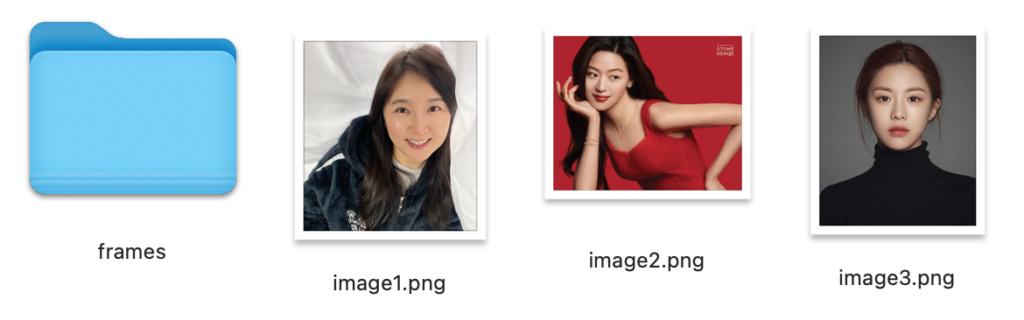
    실행을 해보기 전에 애니메이션 할때 사용했던 이미지파일들과 만들어 두었던 TTS음성파일을 같은 폴더에 저장합니다. 음성파일 복사해오는 대신 TTS음성파일 만드는 코드를 여기에 갖다 붙여서 사용해도 좋구요.

    python voiceover.py

    실행해보시면 얼굴들이 미친듯이 돌아가면서 음성파일이 실행됩니다. 전혀 AI 아바타같지는 않은데…이걸로 뭘하라는 건지 잘 모르겠네요..글쓴이는 뭔가 그럴싸한 아이디어를 주었다고 생각하는거 같은데 사실 이건 그 사람이 실제 개발하고 있는 코드는 밥그릇째 내줄수 없다 뭐 그런 느낌이에요. 여기에서 뭔가 스스로 발전시키라는 의도인것 같은데 암튼 좀더 리서치를 해보고 좋은 글을 찾아서 다시 공유하도록 하겠습니다.

    References

    AI Avatar – 5. Create Voice Over from Text to Speech

    안녕하세요. 이번시간에는 지난시간까지 만들었던 아바타에 음성기능을 추가하기 위해서 텍스트를 음성으로 변환하는 라이브러리들을 배워볼거에요.

    Text to Speech

    pyttsx3

    아바타에 텍스트 음성 변환(TTS) 기능을 추가하려면 pyttsx3, gTTS, 또는 pydub과 같은 Python 라이브러리를 사용할 수 있는데요. 본 강의에서는 오프라인에서도 잘 작동하고 다양한 TTS 엔진을 지원하는 pyttsx3를 사용하여 음성기능을 추가하는 방법을 진행하도록 하겠습니다.

    필요한 라이브러리를 추가로 설치해주세요.

    pip install pyttsx3

    tts_by_pyttsx3.py라는 파일을 하나 생성하세요. 그리고 pyttsx3라이브러리를 포함합니다.

    import pyttsx3

    그리고 TTS엔진을 초기화 시킵니다.

    # Initialize the text-to-speech engine
    engine = pyttsx3.init()

    다음으로는 텍스트를 음성으로 변환해주는 함수, text_to_speech()를 선언해주세요. 인자로는 변환할 텍스트와 음성파일 저장위치 입니다. 엔진의 setProperty()함수를 통해서 속도나 볼륨등을 조절한 뒤, 엔진의 say()함수를 호출해서 프로그램이 실행되면 텍스트를 음성으로 변환하여 재생하도록 합니다. 엔진에 텍스트와 음성파일의 저장위치도 전달하여 파일을 저장합니다. 함수의 맨 끝에 runAndWait()함수를 호출하여 음성재생이 끝날때까지 프로그램의 종료를 지연시킵니다.

    # Function to convert text to speech
    def text_to_speech(text, save_path=None):
        engine.say(text)
        
        # Optionally save the speech to a file
        if save_path:
            engine.save_to_file(text, save_path)
        
        engine.runAndWait()

    임의의 문자열을 변수에 저장하고, text_to_speech()함수에 인자로 전달하여 호출합니다. 이때, 저장할 파일명도 함께 전달합니다. 참고로 속도나 볼륨, 다른 목소리 사용하기등 pyttsx3에 대한 추가옵션을 여기에서 확인하세요.

    # Example text for the avatar to speak
    text = "Hello! I am your AI avatar. Nice to meet you!"
    
    # Convert the text to speech and save it to a file
    text_to_speech(text, save_path='avatar_voiceover.mp3')

    완성된 코드는 아래와 같습니다.

    import pyttsx3
    
    # Initialize the text-to-speech engine
    engine = pyttsx3.init()
    
    # Function to convert text to speech
    def text_to_speech(text, save_path=None):
        engine.say(text)
        
        # Optionally save the speech to a file
        if save_path:
            engine.save_to_file(text, save_path)
        
        engine.runAndWait()
    
    # Example text for the avatar to speak
    text = "Hello! I am your AI avatar. Nice to meet you!"
    
    # Convert the text to speech and save it to a file
    text_to_speech(text, save_path='avatar_voiceover.mp3')

    실행해볼게요.

    python text_to_speech.py

    해당 텍스트를 프로그램 실행하니까 바로 음성으로 제공되고, 해당 음성이 같은 폴더에 avatar_voiceover.mp3로 저장도 됩니다. Mac에서 mp3결과물을 실행해보려면 mpg123같은 음성재생라이브러리가 필요합니다.

    brew install mpg123

    어떤 이유에서 인지 pyttsx3로 생성한 mp3파일은 mpg123으로 재생이 안되고 에러가 나는데 이건 pyttsx3패키지 문제인것 같습니다.

    $ mpg123 output_pyttsx3.mp3
    High Performance MPEG 1.0/2.0/2.5 Audio Player for Layers 1, 2 and 3
    	version 1.32.10; written and copyright by Michael Hipp and others
    	free software (LGPL) without any warranty but with best wishes
    
    
    Terminal control enabled, press 'h' for listing of keys and functions.
    
    Playing MPEG stream 1 of 1: output_pyttsx3.mp3 ...
    
    MPEG 1.0 L II cbr379 44100 stereo
    [src/libmpg123/getbits.h:getbits():46] error: Tried to read 16 bits with -13 available.
    [src/libmpg123/layer2.c:INT123_do_layer2():365] error: missing bits in layer II step two
    [src/libmpg123/getbits.h:getbits():46] error: Tried to read 16 bits with -13 available.
    [src/libmpg123/getbits.h:getbits():46] error: Tried to read 16 bits with -29 available.
    [src/libmpg123/getbits.h:getbits():46] error: Tried to read 16 bits with -45 available.
    [src/libmpg123/layer2.c:INT123_do_layer2():365] error: missing bits in layer II step two
    Note: Illegal Audio-MPEG-Header 0x00f00210 at offset 6636.
    Note: Trying to resync...
    Note: Skipped 466 bytes in input.
    
    Warning: Big change from first (MPEG version, layer, rate). Frankenstein stream?
    > 02+65  00:00.20+00:06.79 --- 100=100   0 kb/s 1237 B acc 1656 clip p+0.000
    MPEG 2.5 L II cbr95 11025 j-s
    Note: Illegal Audio-MPEG-Header 0x2bd520d3 at offset 8339.
    Note: Trying to resync...
    Note: Skipped 658 bytes in input.
    
    Warning: Big change from first (MPEG version, layer, rate). Frankenstein stream?
    > 03+76  00:00.14+00:03.65 --- 100=100  80 kb/s  481 B acc 1179 clip p+0.000
    MPEG 2.5 L III cbr80 12000 mono
    Note: Illegal Audio-MPEG-Header 0xe027de53 at offset 9478.
    Note: Trying to resync...
    Note: Skipped 1024 bytes in input.
    [src/libmpg123/parse.c:wetwork():1389] error: Giving up resync after 1024 bytes - your stream is not nice... (maybe increasing resync limit could help).
    main: [src/mpg123.c:play_frame():866] error: ...in decoding next frame: Failed to find valid MPEG data within limit on resync. (code 28)
    
    This was a Frankenstein track.
    [0:00] Decoding of output_pyttsx3.mp3 finished.

    gtts

    이번에는 gtts를 이용해서 TTS를 구현해 보도록 하겠습니다.

    gtts를 설치해주세요.

    pip install gtts

    그리고 tts_by_gtts.py를 생성해서 아래 코드를 저장해주세요.

    from gtts import gTTS
    
    tts = gTTS("Hello, world!", lang="en")
    tts.save("output_gtts.mp3")

    실행해 보시면 output_gtts.mp3가 생성되어 있을거에요.

    python tts_by_gtts.py

    gtts로 만든 파일은 mpg123를 이용해서 재생할 수 있습니다.

    mpg123 output_gtts.mp3

    그런데 얘는 다양한 목소리 지원이나 속도, 볼륨조절등의 옵션은 없어요. 그럼 다음시간에 마지막으로 애니메이션과 음성을 병합하는 코드 함께 해볼게요.

    References

    AI Avatar – 4. Animate the Avatar

    이번시간에는 지난시간에 만든 아바타를 가지고 움직이게 만들어 볼거에요. 지난 시간에 만든 코드에 덧붙여서 만들거에요. 반드시 지난 시간 코드를 알고 계셔야합니다.

    코드의 맨 마지막에 아래 코드를 추가합니다. 아래 코드는 기존에 이미지와 동영상프레임 이미지들에서 획득한 얼굴이미지들을 하나씩 돌면서 RGB형식으로 만들어진 이미지를 BGR로 변환합니다.

    opencv_images = [cv2.cvtColor(np.array(img), cv2.COLOR_RGB2BGR) for img in faces]

    그리고 아바타에 움직을 추가할 함수, animate_avatar()를 선언합니다. 인자로는 얼굴 이미지들을 넘겨받고, 이미지들을 빠르게 돌려서 움직이는 것 처럼 보이게 만듭니다.

    def animate_avatar(images):
        cv2.namedWindow('Avatar Animation', cv2.WINDOW_NORMAL)
        for i in range(30):  # Number of animation cycles
            for image in images:
                cv2.imshow('Avatar Animation', image)
                if cv2.waitKey(1) & 0xFF == ord('q'):
                    break
        cv2.destroyAllWindows()
    
    # Animate the avatar
    animate_avatar(opencv_images)

    아래는 완성된 코드입니다.

    import os
    import cv2
    import dlib
    import numpy as np
    from PIL import Image
    
    def get_files_with_extensions(directory, extensions):
        # get multiple files
        files = os.listdir(directory)
        if len(extensions) > 0:
            return [f for f in files if os.path.splitext(f)[1].lower() in extensions]
        else:
            return files
    
    # dlib 얼굴 검출기 로드
    detector = dlib.get_frontal_face_detector()
    
    # 이미지에서 얼굴을 추출하는 함수
    def extract_face(image_path):
        image = cv2.imread(image_path)
        faces = detector(image)
        if  len(faces) > 0:
            face = faces[0]   # 발견된 첫 번째 얼굴 추출
            x, y, w, h = face.left(), face.top(), face.width(), face.height()
            face_image = image[y:y+h, x:x+w]
            return cv2.cvtColor(face_image, cv2.COLOR_BGR2RGB)
        else :
            return  None
    
    # 여러 얼굴을 추출하여 반환
    def extract_faces_from_arr(image_paths):
        faces = []
        for path in image_paths:
            face = extract_face(path)
            if face is not None :
                faces.append(face)
        return faces
    
    # 얼굴과 비디오 프레임을 합성 아바타로 통합하는 함수
    def extract_faces_from_folder(frame_dir):
        # 프레임에서 얼굴 추출하여 배열에 저장
        frame_faces = []
        for frame_file in get_files_with_extensions(frame_dir, ['.jpg', '.png']):
            frame_path = os.path.join(frame_dir, frame_file)
            frame_image = extract_face(frame_path)   # extract_face 함수 재사용
            if frame_image is not None :
                frame_faces.append(frame_image)
        return frame_faces
        
    def merge_faces(image_faces, frame_faces):
        return image_faces + frame_faces
    
    def animate_avatar(images):
        cv2.namedWindow('Avatar Animation', cv2.WINDOW_NORMAL)
        for i in range(30):  # Number of animation cycles
            for image in images:
                cv2.imshow('Avatar Animation', image)
                if cv2.waitKey(1) & 0xFF == ord('q'):
                    break
        cv2.destroyAllWindows()
    
    # 얼굴을 추출할 이미지 경로
    image_paths = ['image1.png', 'image2.png', 'image3.png']
    image_faces = extract_faces_from_arr(image_paths)
    
    # 동영상 추출 프레임 이미지 폴더 경로
    folder_path = 'frames'
    frame_faces = extract_faces_from_folder(folder_path)
    
    all_faces = merge_faces(image_faces, frame_faces)
    
    # Convert the PIL images to OpenCV format for animation
    opencv_images = [cv2.cvtColor(np.array(img), cv2.COLOR_RGB2BGR) for img in all_faces]
    
    # Animate the avatar
    animate_avatar(opencv_images)
    

    실행을 해보도록 하겠습니다. 본 파일을 실행전에 얼굴에 사용할 이미지 3개와 동영상에서 캡쳐한 프레임이미지들이 frames에 들어있는지 확인한 뒤 실행합니다.

    python animate_avatar.py

    실행을 하면 팝업이 하나 뜨는데 그 안에서 지금까지 생성한 얼굴들이 빠르게 돌아갑니다. 중간에 멈추고 싶을때는 Ctrl+C를 누르면 종료합니다.

    아직까지는 그닥 아바타 같아보이지가 않아서, 상용화가 가능하도록 다듬는 부분에 있어서는 아무래도 따로 리서치를 해서 추가로 블로깅을 해야할것 같습니다. 생각보다 실망스러운데 일단 다음시간에 하는 더빙까지 붙여 보도록 하겠습니다.

    References

    AI Avatar – 3. Integrate Images and Video Frames to Create the Avatar

    이번시간에는 지난 강좌에서 만든 얼굴 이미지와 동영상에서 추출한 키프레임들을 가지고 아바타를 만들어 보도록 하겠습니다.

    지난 강좌를 따라서 여기까지 오셨다면 여기에서 추가로 설치해야할 라이브러리는 없습니다. create_avatar.py라는 파일을 하나 생성하고 필요한 라이브러리를 코드에 추가해주세요.

    import os
    import cv2
    import dlib
    import numpy as np
    from PIL import Image

    첫번째 시간에 만들어 두었던 얼굴 추출하는 함수를 여기에서 한번더 활용하도록 하겠습니다. 이번에는 동영상 프레임에서 가져온 이미지의 얼굴을 추출하는데 사용될거에요. 참고로 동영상에서 프레임을 추출해서 아바타에 사용하는 이유는 이미지만 가지고 했을때 자연스럽지 않은 부분들을 보충하기 위함이에요. 이미지만 가지고도 충분히 해결할 수 있지만 동영상에서 추출하는게 아무래도 더욱 풍부한 얼굴표현을 가능하게 해주니까요. 이미지는 많으면 많을수록 좋습니다.

    # dlib 얼굴 검출기 로드
    detector = dlib.get_frontal_face_detector()
    
    # 이미지에서 얼굴을 추출하는 함수
    def extract_face(image_path):
        image = cv2.imread(image_path)
        faces = detector(image)
        if  len(faces) > 0:
            face = faces[0]   # 발견된 첫 번째 얼굴 추출
            x, y, w, h = face.left(), face.top(), face.width(), face.height()
            face_image = image[y:y+h, x:x+w]
            return cv2.cvtColor(face_image, cv2.COLOR_BGR2RGB)
        else :
            return  None

    그리고 첫번째 강좌에서 사용했던 코드 일부를 가져옵니다. 이미지경로를 배열에 저장하고, 얼굴들만 추출해서 배열에 담는 코드를 가져와서 추가합니다.

    def extract_faces_from_arr(image_paths):
        faces = []
        for path in image_paths:
            face = extract_face(path)
            if face is not None :
                faces.append(face)
        return faces
    
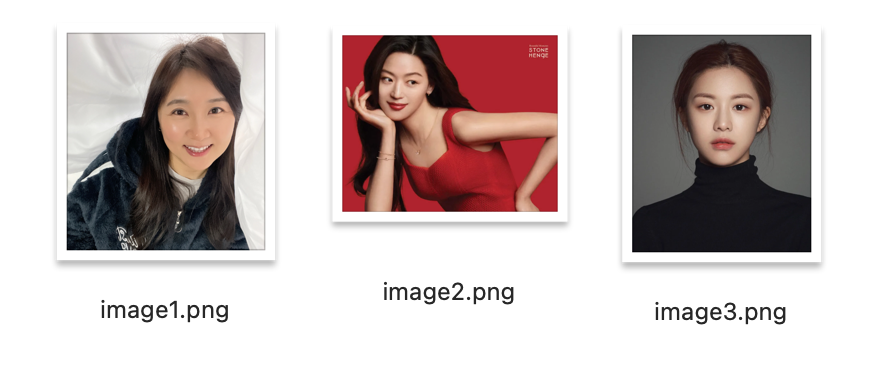
    image_paths = ['image1.png', 'image2.png', 'image3.png']
    image_faces = extract_faces_from_arr(image_paths)

    그리고 동영상에서 추출한 키프레임이미지들에서 얼굴을 획득하는 함수 extract_faces_from_folder()를 선언합니다. 동영상에서 추출한 프레임 이미지가 들어가있는 폴더 경로를 넘겨받아서 해당 폴더의 이미지파일들을 불러오고, 얼굴들을 전부 추출해서 배열에 담습니다.

    def extract_faces_from_folder(frame_dir):
        # 프레임에서 얼굴 추출하여 배열에 저장
        frame_faces = []
        for frame_file in get_files_with_extensions(frame_dir, ['.jpg', '.png']):
            print(frame_file)
            frame_path = os.path.join(frame_dir, frame_file)
            frame_image = extract_face(frame_path)   # extract_face 함수 재사용
            if frame_image is not None :
                frame_faces.append(frame_image)
        return frame_faces
    
    folder_path = 'frames'
    frame_faces = extract_faces_from_folder(folder_path)

    그리고 넘겨받은 얼굴배열과, 프레임에서 추출한 얼굴배열을 병합하여 하나의 배열로 만듭니다.

    def merge_faces(image_faces, frame_faces):
        return image_faces + frame_faces
    
    all_faces = merge_faces(image_faces, frame_faces)

    그리고 배열을 수직으로 쌓아 아바타를 만들고, 해당 배열을 이미지로 만들어 아바타를 어떻게 만들었는지 확인합니다.

    def store_faces_in_a_vertical_image(all_images):
        if all_images:
            composite_avatar = np.vstack(all_images)   # 이미지를 수직으로 쌓기
            avatar_image = Image.fromarray(composite_avatar)
            avatar_image.save('final_avatar.jpg')
            avatar_image.show()
        else :
            print("이미지나 프레임에서 유효한 얼굴을 찾을 수 없습니다.")
    
    store_faces_in_a_vertical_image(all_faces)

    완성된 코드는 다음과 같습니다.

    import os
    import cv2
    import dlib
    import numpy as np
    from PIL import Image
    
    def get_files_with_extensions(directory, extensions):
        # get multiple files
        files = os.listdir(directory)
        if len(extensions) > 0:
            return [f for f in files if os.path.splitext(f)[1].lower() in extensions]
        else:
            return files
    
    # dlib 얼굴 검출기 로드
    detector = dlib.get_frontal_face_detector()
    
    # 이미지에서 얼굴을 추출하는 함수
    def extract_face(image_path):
        image = cv2.imread(image_path)
        faces = detector(image)
        if  len(faces) > 0:
            face = faces[0]   # 발견된 첫 번째 얼굴 추출
            x, y, w, h = face.left(), face.top(), face.width(), face.height()
            face_image = image[y:y+h, x:x+w]
            return cv2.cvtColor(face_image, cv2.COLOR_BGR2RGB)
        else :
            return  None
    
    # 여러얼굴을 추출하여 반환
    def extract_faces_from_arr(image_paths):
        faces = []
        for path in image_paths:
            face = extract_face(path)
            if face is not None :
                faces.append(face)
        return faces
    
    # 얼굴과 비디오 프레임을 합성 아바타로 통합하는 함수
    def extract_faces_from_folder(frame_dir):
        # 프레임에서 얼굴 추출하여 배열에 저장
        frame_faces = []
        for frame_file in get_files_with_extensions(frame_dir, ['.jpg', '.png']):
            print(frame_file)
            frame_path = os.path.join(frame_dir, frame_file)
            frame_image = extract_face(frame_path)   # extract_face 함수 재사용
            if frame_image is not None :
                frame_faces.append(frame_image)
        return frame_faces
        
    def merge_faces(image_faces, frame_faces):
        return image_faces + frame_faces
    
    def store_faces_in_a_vertical_image(all_images):
        if all_images:
            composite_avatar = np.vstack(all_images)   # 이미지를 수직으로 쌓기
            avatar_image = Image.fromarray(composite_avatar)
            avatar_image.save('final_avatar.jpg')
            avatar_image.show()
        else :
            print("이미지나 프레임에서 유효한 얼굴을 찾을 수 없습니다.")
    
    # 얼굴을 추출할 이미지 경로
    image_paths = ['image1.png', 'image2.png', 'image3.png']
    image_faces = extract_faces_from_arr(image_paths)
    
    # 동영상 추출 프레임 이미지 폴더 경로
    folder_path = 'frames'
    frame_faces = extract_faces_from_folder(folder_path)
    
    all_faces = merge_faces(image_faces, frame_faces)
    store_faces_in_a_vertical_image(all_faces)

    그럼 한번 실행을 해볼까요? 실행하기 전에 필요한 파일은 얼굴로 사용할 이미지들과, 동영상에서 추출한 프레임이미지들이 들어있는 폴더입니다.

    스크립트를 실행합니다.

    python create_avatar.py

    에러가 중간에 났는데요. 동영상의 얼굴 퀄리티가 살짝 다른 키프레임을 캡쳐했을때 이런 에러가 나는것 같습니다. 저는 1번 프레임이미지에서 추출한 얼굴이 다른 얼굴과 크기가 살짝 달라서 세로로 갖다 붙이는데 문제가 있다고 아래와 같은 에러가 났어요. 그래서 1번 프레임이미지 지우고 다시 실행했더니 되네요. 한번 해보는거니까 그냥 넘어갈게요.

      File "/Users/me/git/python/ai_avatar/3_create_avatar/create_avatar.py", line 66, in <module>
        create_composite_avatar(faces, output_frame_dir)
        ~~~~~~~~~~~~~~~~~~~~~~~^^^^^^^^^^^^^^^^^^^^^^^^^
      File "/Users/me/git/python/ai_avatar/3_create_avatar/create_avatar.py", line 47, in create_composite_avatar
        composite_avatar = np.vstack(all_images)   # 이미지를 수직으로 쌓기
      File "/Users/me/git/sol1000.com/cms/.venv/lib/python3.13/site-packages/numpy/_core/shape_base.py", line 291, in vstack
        return _nx.concatenate(arrs, 0, dtype=dtype, casting=casting)
               ~~~~~~~~~~~~~~~^^^^^^^^^^^^^^^^^^^^^^^^^^^^^^^^^^^^^^^
    ValueError: all the input array dimensions except for the concatenation axis must match exactly, but along dimension 1, the array at index 0 has size 447 and the array at index 8 has size 536

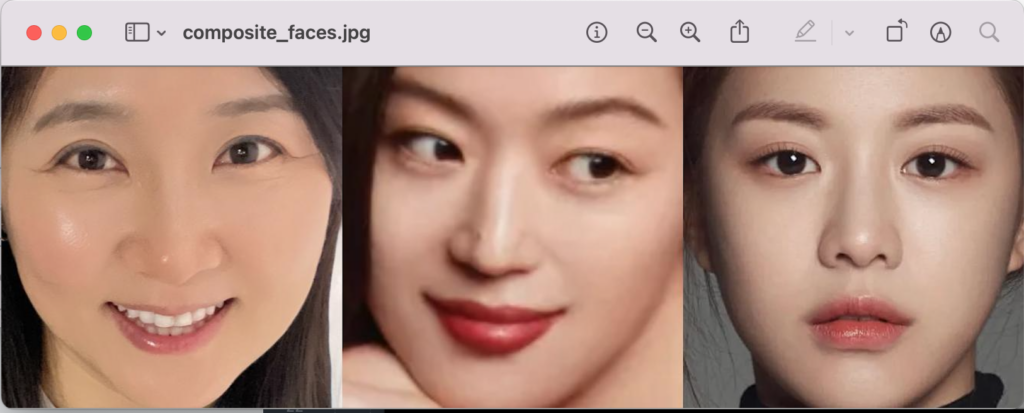
    결과는 다음과 같이 이미지들과 동영상 프레임에서 얼굴만 따서 세로로 주르륵 붙여놓은 형태의 이미지를 만들어 줍니다.

    다음 시간에는 이걸 이용해서 아바타를 움직이게 만드는 강좌를 이어서 하도록 하겠습니다.

    References

    AI Avatar – 2. Extract Key Frames from Video

    유투브 동영상 올리면 썸네일 어떤거 할거냐고 고르라고 동영상에서 이미지들 몇개 캡쳐해서 주르륵 보여주잖아요. 이번시간에는 동영상에서 키프레임을 추출하는 코드를 작성해보도록 하겠습니다. 이렇게 추출한 이미지들을 아바타로 활용하면 아무래도 여기저기서 따로 찍은 사진들을 조합해서 만드는 것보다 자연스럽고 일관된 모습의 아바타를 만들수 있기때문에 동영상에서 아바타에 사용할 이미지를 추출하는것을 추천드립니다.

    동영상파일을 읽어오는데 필요한 라이브러리는 moviepy입니다. 필요한 라이브러리를 설치해주세요.

    pip install moviepy pillow

    extract_keyframes.py이라는 파일을 하나 생성해주세요. 그리고 해당라이브러리와 출력파일을 저장하기 위해 필요한 os도 코드에 포함시켜주세요.

    import os 
    from moviepy import VideoFileClip
    from PIL import Image

    이제 키프레임을 추출할 동영상을 변수에 담습니다

    video_path = 'video2.mp4'

    그리고 동영상에서 이미지를 많이 추출해달라고 요청하는 경우에 대비해서 추출한 이미지파일들을 frames라는 폴더안에 생성하도록 할게요.

    output_frame_dir = 'frames'

    이제 동영상에서 키프레임을 추출하는 함수를 만들어 보도록 하겠습니다. 이 함수는 동영상경로와 저장할 폴더위치, 그리고 추출하고자하는 프레임갯수를 인자로 넘겨받고 동영상을 읽어서 해당위치에 필요한 갯수만큼의 키프레임 캡쳐하여 지정한 폴더에 이미지로 저장해줄겁니다.

    def extract_frames( video_path, output_dir, num_frames=10 ): 

    일단 VideoFileClip()함수에 인자로 받은 동영상경로를 넘겨주어 비디오 클립 Object를 받아옵니다. 해당 동영상의 길이가 얼마나 되는지를 봐서 생성하고 싶은 키프레임으로 나누어 주면 어느정도 간격으로 프레임을 추출해야 동영상 전반에 걸쳐 고르게 추출할수 있는지가 나오겠죠.

        clip = VideoFileClip(video_path) 
        duration = clip.duration 
        interval = duration / num_frames 

    이미지를 저장할 경로가 존재하지 않으면 에러가 나니까 폴더가 없으면 만들어 줍니다.

        if  not os.path.exists(output_dir): 
            os.makedirs(output_dir) 

    동영상에서 이미지를 가져오는 방법은 클립 object의 get_frame()함수에게 어느시간대의 프레임을 가져오라고 하면 얘가 배열을 반환합니다. 그러면 Image.fromarray()함수로 배열을 이미지로 변환해서 지정된 폴더에 저장을 합니다.

        for i in range(num_frames): 
            frame_time = i * interval 
            frame = clip.get_frame(frame_time) 
            frame_image = Image.fromarray(frame) 
            frame_image.save( f" {output_dir} /frame_ {i} .jpg" ) 

    완성된 코드는 다음과 같습니다.

    import os
    from moviepy import VideoFileClip
    from PIL import Image
    
    # 비디오에서 프레임을 추출하는 함수
    def extract_frames(video_path, output_dir, num_frames=10):
        clip = VideoFileClip(video_path)
        duration = clip.duration
        interval = duration / num_frames
       
        if  not os.path.exists(output_dir):
            os.makedirs(output_dir)
    
        for i in range(num_frames):
            frame_time = i * interval
            frame = clip.get_frame(frame_time)
            frame_image = Image.fromarray(frame)
            frame_image.save(f"{output_dir}/frame_{i}.jpg")
    
    # 프레임 추출 함수 호출
    video_path = 'video1.mp4'
    output_frame_dir = 'frames'
    extract_frames(video_path, output_frame_dir)
    

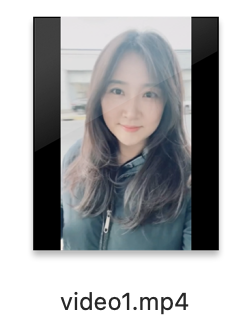
    그러면 파일을 실행해보도록 하겠습니다. 실행하기 전에 동영상파일을 하나 가져다가 같은 폴더에 저장합니다.

    그리고 스크립트를 실행하면

    python extract_keyframes.py

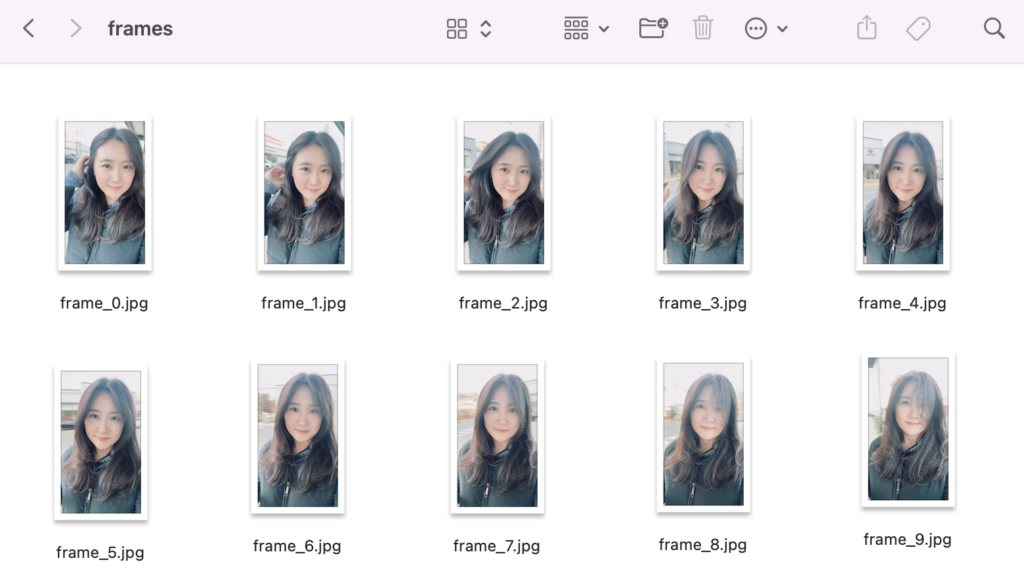
    다음과 같이 frames라는 폴더 안에 10개의 키프레임이 이미지로 저장이 됩니다.

    References